Turn song lyrics into a rough cut with Storyboard
This guide shows you how to paste the lyrics of your song and get a clip for every line, ready to export as a first draft of your edit.
How it works: Potheon searches your footage for each line of the lyrics, one line at a time, and picks a clip for each. You swap the ones you don't like, then export them all as a timeline, in the order of the song. Each lyric comes with its clip as a marker, so you can see which line is which.
It's in the Potheon desktop app and in the Premiere Pro and After Effects panels. Exporting needs the Creator plan (beta testers have it).
Words used in this guide
- Clip: a short piece of video, cut out of a longer episode or film.
- Rough cut: a first, quick version of an edit, to improve later.
- Marker: a small flag on a timeline with a note on it.
Step 1: Open the Storyboard tab and paste your lyrics
Click the Storyboard tab. Click in the big box and paste your lyrics (Ctrl + V), one line per shot.
Lines like [Chorus], (x2) or Verse 1: are skipped: they're labels, not shots. Empty lines are skipped too.
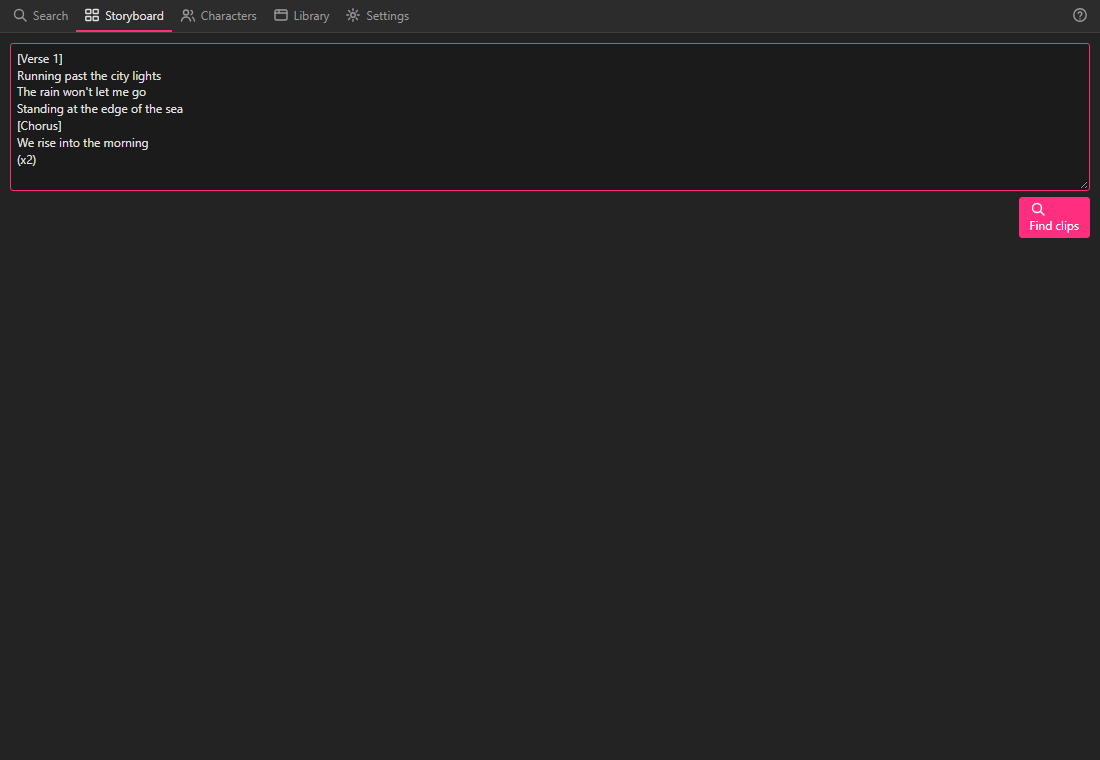
If Potheon knows which show your files are from, a menu next to the button lets you choose one show to take clips from. Leave it on All shows to use everything.
Step 2: Click "Find clips"
Click the pink Find clips button. Potheon searches for each line in turn and says how far it's got (Finding clips for line 2 of 4…). Click Stop if you want to stop early.
Step 3: Look at the clips for each line
Each line now has a row of up to 8 clips. The one with the pink border is the clip picked for that line.
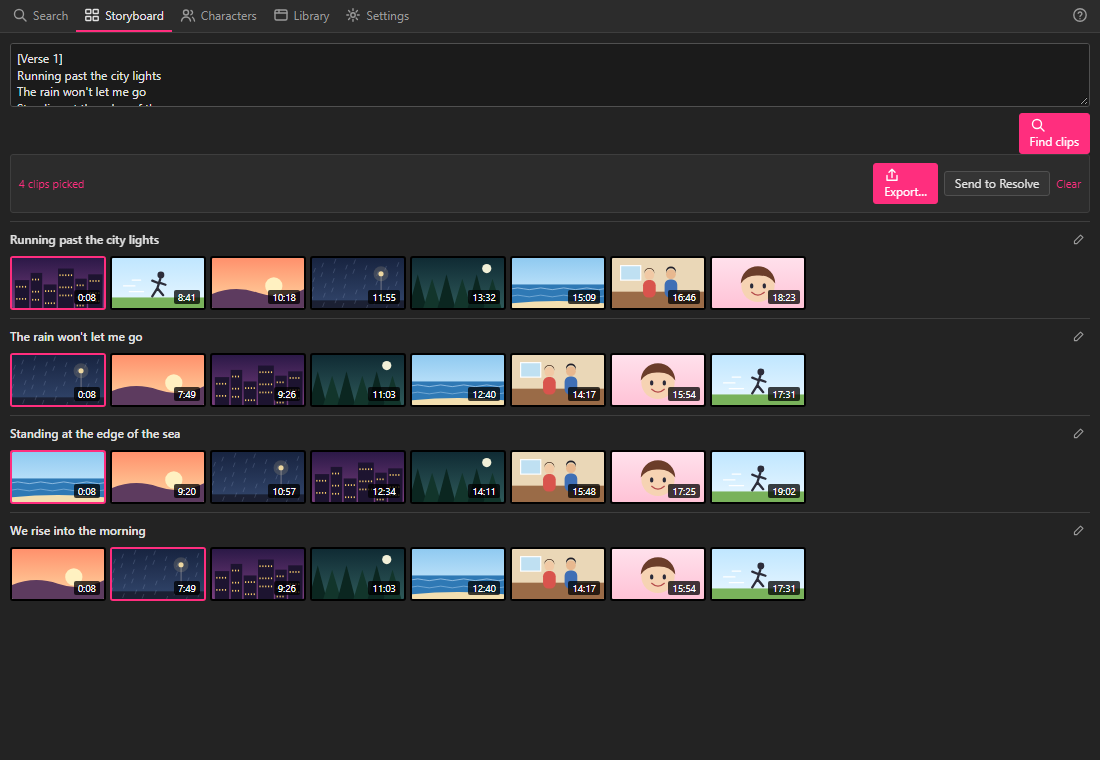
- To pick a different clip, click it. Its border turns pink.
- To leave a line empty, click its picked clip again.
- Point at a clip to see which episode it's from and when.
When a line comes twice (a chorus sung again), Potheon picks a different clip for the second time, so your edit doesn't repeat itself.
Step 4: Not right? Search other words for a line
Lyrics don't always describe what you want to see. To search for something else for one line:
- Click the pencil at the right-hand end of the line.
- Type what you'd like to see instead, for example street at night in the rain.
- Click Search.

The line keeps its lyric, with the words you searched shown next to it.
Step 5: Export the rough cut
Above the lines, a bar says how many clips are picked. Click Export…, give the sequence a name, and click Export (the button says how many clips). It works exactly like exporting from the Search tab:
- Premiere Pro panel: click Import into project, and the sequence appears in your project. See Use the Potheon panel in Premiere Pro, Step 8.
- Desktop app: open the file in DaVinci Resolve with File › Import › Timeline… (see Put a timeline into DaVinci Resolve), or click Send to Resolve (see Put clips into DaVinci Resolve).
The clips are in the order of the song, and each one has a marker with its lyric.
Good to know
- Your lyrics and picks stay when you go to another tab and come back, and the next time you open Potheon on this computer.
- Pasting new lyrics and clicking Find clips starts again from the new lyrics.
- Clips here are the moments Potheon found. To change how long a clip is, do it on your timeline after importing.
- Lines that describe something you can see work best, such as "running past the city lights". For a line like "I don't know why", use the pencil and describe the shot you want instead.