Put a timeline into DaVinci Resolve
This guide shows you how to turn the clips you picked in Potheon into a ready-made timeline in DaVinci Resolve: all your clips in a row, in the order you picked them. It works with the free version of Resolve.
How it works: Potheon saves a small file that lists your clips (an XML file). Resolve opens it and builds the timeline for you. Each clip on it is linked to the whole episode, so you can still make it longer in Resolve.
This is in the Potheon desktop app. Exporting needs the Creator plan (beta testers have it).
Other ways into Resolve: to get the clips into a folder in Resolve rather than on a timeline, use Send to Resolve. To add one clip at a time, drag it out of Potheon (see Use the Potheon desktop app).
Words used in this guide
- Clip: a short piece of video, cut out of a longer episode or film.
- Timeline: the strip along the bottom of Resolve's Edit page where clips go in order.
- Media Pool: the area at the top left of Resolve that lists everything in your project.
- XML and EDL: two kinds of file that describe a timeline (which clips, in which order). XML is the better one for Resolve.
- Frame rate: how many pictures a video shows each second (for example 24 or 30).
Step 1: Pick your clips in Potheon
Search for what you need. On each result you want, point at it and click the small square at the bottom left of its picture. It turns pink with a tick. Pick them in the order you want them on the timeline. Your picks are kept when you search for something else.
A bar appears above the results saying how many clips you've picked.
Step 2: Click "Export…" and choose Timeline XML
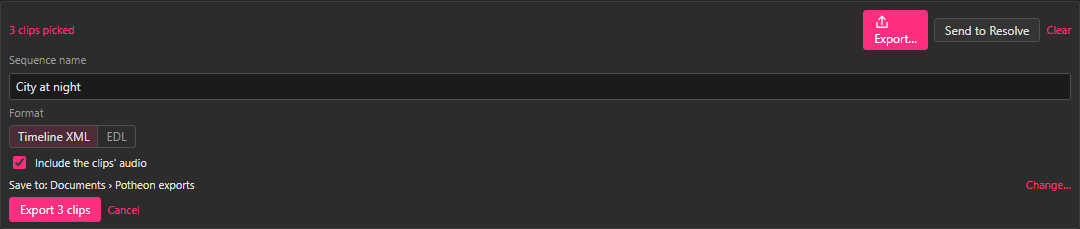
In that bar, click Export…. Then:
- Type a Sequence name. This becomes the timeline's name in Resolve.
- Under Format, click Timeline XML.
- Leave Include the clips' audio ticked.
- Click Export 3 clips (the number is how many you picked).
Step 3: Note where the file was saved
Potheon says where it saved the file, usually in your Documents folder, in Potheon exports, and reminds you what to click in Resolve.

Step 4: In Resolve, open your project
Start DaVinci Resolve and open your project (or make a new one).
Step 5: Click File › Import › Timeline…
At the very top of Resolve's window, click File, point at Import, then click Timeline…. (The keyboard shortcut is Ctrl + Shift + I.)
Step 6: Pick the file Potheon saved
Go to Documents, then Potheon exports, click the file with your sequence's name and click Open.
Step 7: Click OK
Resolve shows a window of import options. Leave them as they are (Automatically import source clips into media pool stays ticked) and click OK.
A new timeline with your sequence's name appears in the Media Pool and opens. Your clips are on it, in the order you picked them, with their sound. Along the top of the timeline, each clip has a marker with the words you searched for.
Step 8: Edit as usual
Each clip is linked to the whole episode. To make one longer, drag its edge outwards on the timeline: the rest of the episode is there.
If the XML doesn't work: use an EDL
An EDL is an older, simpler kind of timeline file. Use it if the XML gives you trouble:
In Potheon, click Export… again and under Format click EDL.
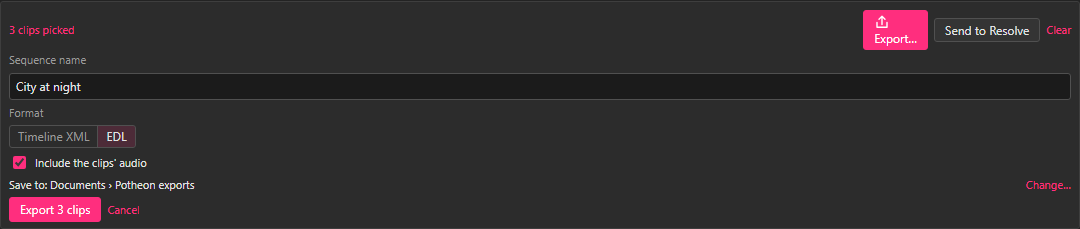
Click Export 3 clips (your number), then in Resolve do Steps 5 to 7 with the .edl file.
Use the XML when your clips have different frame rates, for example clips from a film and from a series in the same timeline. An EDL can't carry different frame rates into Resolve, so some clips would start on the wrong frame. An EDL also has no markers.
Good to know
- Clips shown in red, or "not found": the drive with your episodes isn't connected. Connect it, then import the timeline again (Steps 5 to 7).
- Premiere Pro opens the same XML: in Premiere, use File › Import and pick the file.