Use the Potheon panel in Premiere Pro
This guide shows you how to find moments with Potheon inside Premiere Pro and put them straight onto your timeline, without leaving Premiere.
How it works: Potheon adds a panel to Premiere. You search in the panel, and with one click the moment goes onto your timeline or into the Source Monitor. The clip stays linked to the whole episode, so you can make it longer or shorter on your timeline as usual.
It works with Premiere Pro 2020 and newer. You need Potheon installed and your footage added first: see Get started with Potheon.
Words used in this guide
- Clip: a short piece of video, cut out of a longer episode or film.
- Sequence: an edit in Premiere, with its own timeline.
- Timeline: the long strip along the bottom of Premiere where you put clips in order.
- Playhead: the blue line on the timeline that shows the moment you're at.
- Source Monitor: the viewer at the top left of Premiere where you look at a clip before you use it.
- In point and out point: where a clip starts and stops.
Step 1: Open your project and a sequence
Open Premiere Pro and your project. To put clips on a timeline, open the sequence you're working on too (double-click it in the Project panel).
Step 2: Open the panel: Window › Extensions › Potheon
At the top of Premiere, click Window, point at Extensions, then click Potheon. In Premiere 2025 and newer this menu may be called Extensions (Legacy).
The panel opens in its own small window. If Potheon wasn't running, the panel starts it and says Starting the Potheon agent… for a few seconds.
Tip: drag the panel's name tab next to your Project panel to keep it docked there. When the panel is narrow, its tabs show only their icons: point at one to see its name.
Step 3: Search
Type what you're looking for in the search box and press Enter. Pick Shots for something you can see, or Dialogue for something that's said. (More about searching: Get started with Potheon, Part 4.)
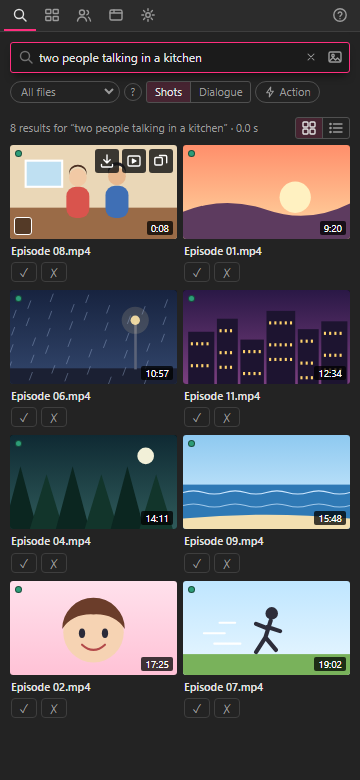
Step 4: Preview a result
Double-click a result's picture. It plays the moment on a loop, with sound. Press Esc to stop, or → and ← to play the next or previous result.
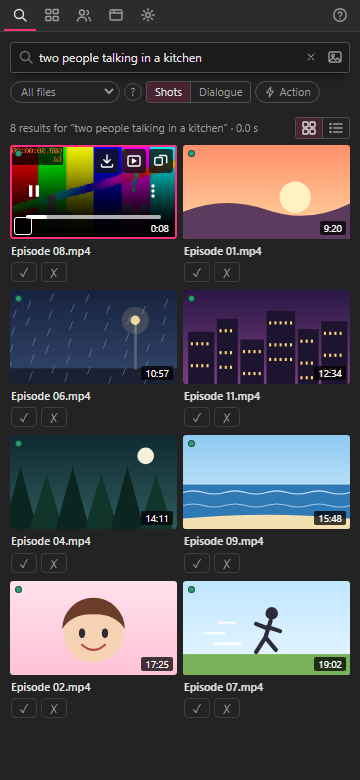
There's no trim bar here: in Premiere you make the clip longer or shorter on your timeline.
Step 5: Find the buttons on a result
Point your mouse at a result. Three small buttons appear at its top right, and a small square at its bottom left:
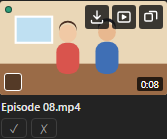
| Button | What it does |
|---|---|
| Arrow pointing down into a tray (first) | Insert into timeline |
| Play sign in a box (second) | Open in Source Monitor |
| Two overlapping squares (third) | Find similar shots: more shots that look like this one |
| Square at the bottom left | Pick for export (see Step 8) |
Point at a button and wait a moment to see its name.
Step 6: Insert into timeline
Move the playhead on your timeline to where you want the clip. Then, in the panel, point at the result and click Insert into timeline (the first button).
The picture says Adding to timeline…, and then the clip appears on your timeline at the playhead, on the first video track (V1), with its sound. Anything after the playhead moves along to make room.
- A shot comes in exactly as long as the shot.
- A line of dialogue comes in with half a second extra at each end, so no word is cut off.
Need more of it? Drag the clip's edge outwards on the timeline. The whole episode is linked, so it keeps going.
Step 7: Open in Source Monitor (another way)
If you'd rather look at the clip first, or use Premiere's own insert and overwrite buttons, click Open in Source Monitor (the second button).
The episode opens in the Source Monitor with its in point and out point already set around the moment, and the playhead on the in point. Then use it as you would any clip: drag it onto the timeline, or press , (insert) or . (overwrite).
The first time you use an episode, Potheon adds it to your project. After that it uses the one already there.
Step 8: Pick several clips and export them as a sequence
You can also collect clips as you search, and get them all at once as a new sequence. This needs the Creator plan (beta testers have it).
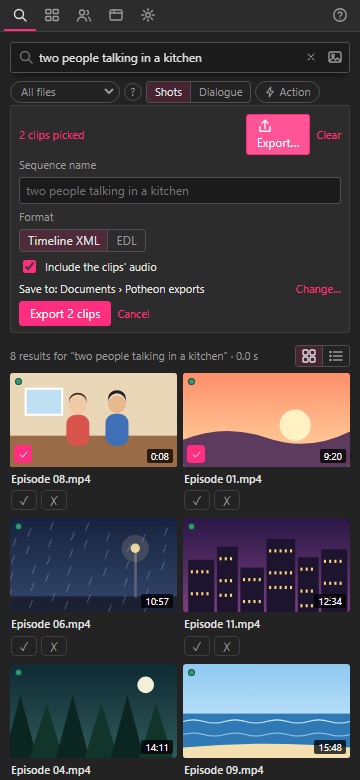
On each result you want, click the small square at the bottom left of its picture. It turns pink with a tick. Your picks are kept when you search for something else.
A bar appears above the results saying how many clips you've picked. Click Export….
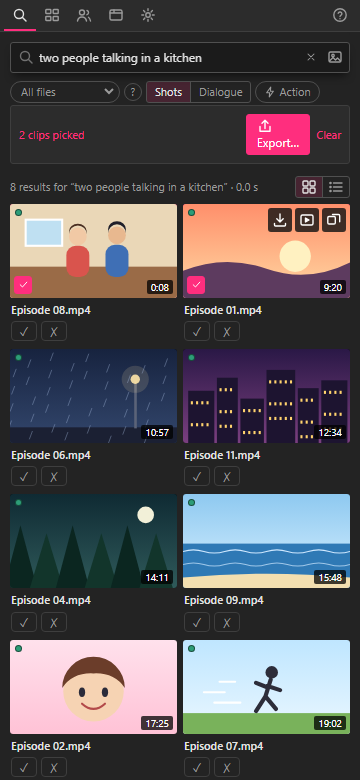
Type a Sequence name (or keep the suggested one), leave Timeline XML picked and Include the clips' audio ticked, and click Export 2 clips (the number is how many you picked).
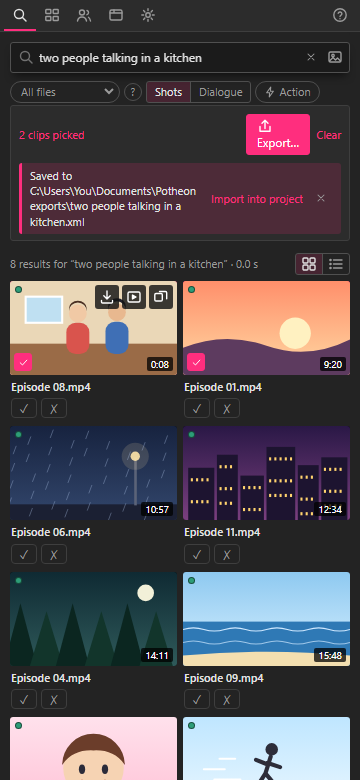
Potheon says where it saved the file. Click Import into project.
A new sequence with your clips in the order you picked them appears in your Project panel. Each clip has a marker with the words you searched for. Double-click the sequence to open it.
To import it later instead, use Premiere's File › Import and pick the file. Exports are saved in your Documents folder, in Potheon exports (click Change… to save them somewhere else).
To take a clip out of your picks, click its tick again. Clear removes them all.
Good to know
- MKV files: Premiere can't open MKV (and a few other kinds of video). The first time you insert a result from one, Potheon makes an MP4 copy, which can take a little while. The copies go in a folder next to your footage folder, named after it with "(MP4)" at the end.
- "Open a sequence first" means no sequence was open in Premiere when you clicked Insert into timeline. Open one and click again.
- The panel and the desktop app share everything: the same footage, characters and scans. You can add footage from the panel's Library tab too.
- Closing Premiere doesn't stop a scan. It carries on in the background.
- Potheon frees its memory while you edit: with Premiere open, the search models are unloaded two minutes after your last search, and load again as you type.
- Help: the ? at the top right of the panel opens this guide.