Help improve Potheon
During the beta, Potheon can tell us, in a few numbers a day, whether search is finding what you look for. This guide shows you what it asks, what it sends, how to see exactly what was sent, and how to turn it off or delete it.
In short: it never sends your footage, pictures, faces, file or folder names, or what's said in your videos. What you search for is sent only if you tick a separate box. It's on for beta testers (you agreed to it with the beta invite), and you can turn it off at any time.
Words used in this guide
- Report: a small summary of the day, mostly counts ("14 searches, 11 found something"), sent once a day.
- Result: one of the pictures you get after a search.
The occasional one-tap question
Now and then, a thin bar appears above your results with a question. For example, a minute after a search (or a few seconds after you use a result):

Click an answer. That's all. If you click Not quite or No, a box appears for one optional line about what you were looking for. Type it and click Send, or just click the ×.

The questions you may see:
| Question | When |
|---|---|
| Did you find what you were looking for? | After a search |
| How did the first scan feel? | When your first scan finishes |
| How would you feel if you could no longer use Potheon? | Once, after you've used it for a while |
It never gets in your way: the bar never pops up over your work, and ignoring it is the same as not answering. You'll see at most one question a day (three a week), and none in your first hour.
To stop the questions, click Don't ask again in the bar. To bring them back, tick Ask me the occasional one-tap question again in Settings (see below).
The ✓ and ✗ under results
Under each result are two small buttons: ✓ (right result) and ✗ (wrong result). Clicking one tells us whether that result was what you meant. Click it again to undo. They're always optional.
Turn it on or off: Settings › Help improve Potheon
- Click the Settings tab.
- Scroll down to Help improve Potheon.
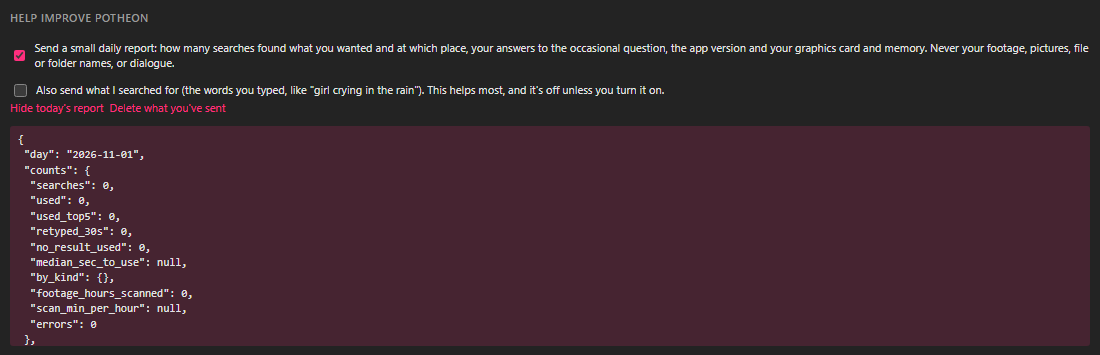
There are two ticks:
- Send a small daily report: how many searches found what you wanted and at which place in the results, your answers to the questions, the app version, and your graphics card and memory. Untick it to stop sending anything.
- Also send what I searched for: the words you typed, like "girl crying in the rain". This helps us most, but it's off unless you turn it on.
See exactly what's sent
- Show today's report so far shows today's report as it would be sent, before it goes.
- Show the last report sent shows the last one, exactly as it was sent.
The report is written for a computer to read, so it looks like a list of names and numbers in brackets. Each name is a count, such as searches or used (results you used).
Delete what was sent
Click Delete what you've sent. This asks our server to delete every report this computer has sent, and the link changes to Deleted. Otherwise each report is kept for 90 days, then deleted.
Turning the report off doesn't delete anything on your computer; it just stops sending.
Good to know
- Reports go with your beta licence, not your name or e-mail, so we can look into a bad experience without knowing who you are.
- Nothing here is needed for Potheon to work. Every feature works the same with it off.
- Something broken? That's a different button: Report a problem (see When something goes wrong).
- The full details are in the Privacy Policy (Settings, then Privacy at the bottom).