When something goes wrong
The most common problems, what they mean, and how to fix them. If yours isn't here, or the fix doesn't work, tell us: see Report a problem at the end.
Words used in this guide
- Agent: the part of Potheon that works in the background. It scans your footage and answers searches. The desktop app and the Premiere and After Effects panels are windows onto it.
- Scan: Potheon going through your episodes once to learn what's in them.
- Library: a folder of episodes you've added to Potheon.
The panel says "Can't reach the Potheon agent. Is it running?"
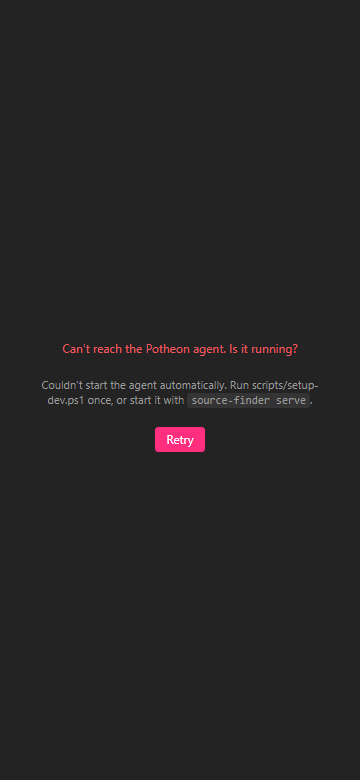
The panel couldn't find the background part of Potheon, and couldn't start it.
- Click the Start button and open Potheon. Opening the desktop app starts the agent.
- Wait about 20 seconds (the first start after turning on the computer can take a little longer).
- Click Retry in the panel.
You can ignore the grey line below the message (about scripts and source-finder serve): it's meant for our developers.
Still not working? Restart your computer, open Potheon, and try again. If it still says the same, report a problem from the desktop app.
Results are missing
The episode isn't scanned yet
While a scan is running, a thin bar at the top of the Search tab shows how far it's got. Episodes can only be found once they're scanned.
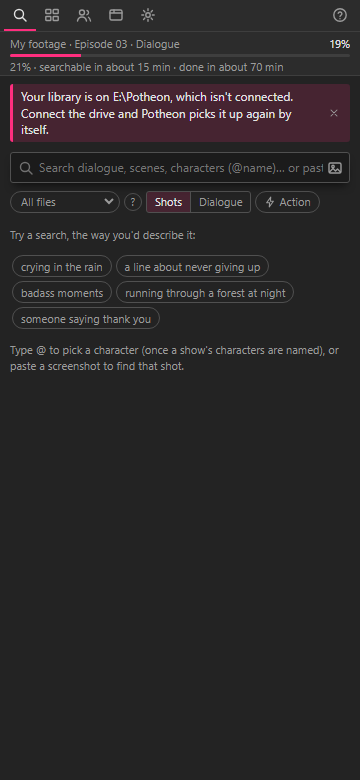
- Click the bar to see the Library: the file being scanned has a ▶, and Up next lists the files waiting.
- To have a file ready sooner, click ⤒ next to it to scan it next.
- Searching for a character needs the Characters step to be done for that episode too.
The drive isn't connected
If your episodes, or Potheon's own index, are on a USB or network drive, Potheon can't use them while it's unplugged. A pink bar says so (as in the picture above). Connect the drive: Potheon picks it up again by itself. Nothing scanned is lost.
A filter is still on
Look under the search box:
- Is the right side picked? Shots finds what's seen, Dialogue what's said.
- Is there a pink label with a character's name? Click its × to remove it.
- Is All files (or All shows) set to one episode or show? Set it back.
- Is Action on (pink)? Click it to turn it off.
The free plan's hours are used up
On the Free plan, Potheon scans 1 hour of new footage a month (3 in your first month). Files over that wait until next month. Settings, under Licence, says how many files are waiting. Beta testers: enter your licence key there to remove the limit (see Get started with Potheon, Step 5).
A clip won't open, or a library says "Folder not found"
This usually means Windows gave your drive a different letter (for example, your USB drive was E: and is now F:), or the folder was moved or renamed. Potheon still looks in the old place.
- Click the Library tab.
- On the library's card, click Rescan. It stops with Failed: Folder not found….
- Click Folder moved? and choose the folder where it is now.

Everything already scanned is kept: nothing has to be scanned again.
In Premiere Pro or After Effects, clips you'd already added to a project show as offline (usually red) until you link them to the new place. In Premiere, right-click the clip in the Project panel, choose Link Media… and find the file.
If the drive is simply unplugged, plug it back in instead and click Rescan.
The scan is slow
- The first file is always slower. The first time, Potheon downloads its AI models (about 2 GB).
- A graphics card makes a big difference. In Settings, Processor for image models should say Automatic with your graphics card's name. If it says there's no supported graphics card, everything runs on the processor, which is slower.
- Other heavy programs slow it down, such as games, rendering or exporting. Scanning carries on, just more slowly.
- Fast indexing (in Settings) uses all your processor's cores. Scans are faster, but editing feels slower while it runs.
- Shot descriptions (in Settings): if it's set to Everything, including anime, scans are much slower. Set it back to Live-action only.
- Want dialogue sooner? In Settings, Scan order, choose Dialogue and shots of every file first. Character searches then wait until the whole library is done.
You can Pause a scan on the Library tab while you edit, and Resume it later.
The first search takes a while
The first search after starting Potheon, or after a while without searching, loads the search models (Potheon unloads them when they're not in use, to leave memory for your editor). That can take a few seconds; the next searches are quicker. Clicking in the search box starts loading them while you type.
"Your index looks damaged"
- Click Settings and scroll down to Backups… and click it.
- Next to the newest backup, click Restore.
Potheon makes a backup of its index every day. Files added since that backup are scanned again.
Report a problem
- Click the Settings tab and scroll to the bottom.
- Click Report a problem.
- Under What happened?, write what you did, what you expected, and what happened instead.
- Under Where?, choose the part of Potheon it's about.
- Leave Include the app's recent log ticked: it helps us find the cause.
- Click Review before sending. You see exactly what will be sent. Your user name, e-mail addresses and licence are taken out, and no footage, searches or transcripts are included.
- Click Send report. Potheon says Sent. Thank you!

If Potheon won't open at all, e-mail us at [email protected] with what happened.