Name your characters
This guide shows you how to tell Potheon who's who in your footage. Once a character has a name, you can search for them (type @ and their name), and every search that mentions them gets better.
How it works: while it scans, Potheon finds the faces in each shot and puts faces that look alike into groups. It names some characters by itself. The rest are waiting for you: you look at a few faces and type a name, once. Potheon also asks you to confirm look-alikes from other episodes, so the wrong person never gets mixed in.
Characters are part of the Creator plan (beta testers have it). They work best on anime. Everything happens on your computer.
Words used in this guide
- Character: a person in your footage. Potheon knows them by their face.
- Group: faces Potheon thinks are the same person, before anyone has named them.
- Appearances: how many times their face was found.
Step 1: Open the Characters tab
Click the Characters tab at the top. You see:
- Named characters first, each with a few of their faces, how many appearances, and in how many episodes.
- Who is this?: groups of faces that look alike but have no name yet.
- Minor faces (folded away at the bottom): people seen briefly in one episode, often in the background. You can leave these.
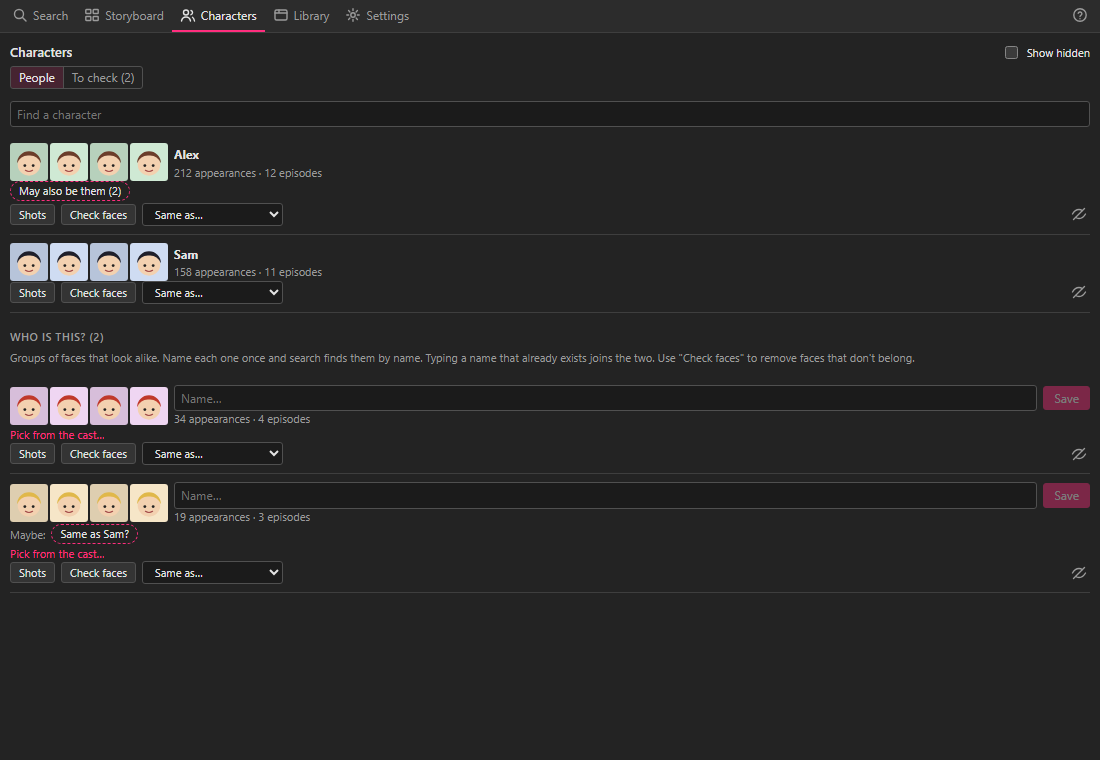
New characters appear here as episodes finish scanning. If the tab is empty, make sure Find characters (anime) isn't set to Off in Settings.
Step 2: Name a group
Look at the faces of a group under Who is this?. If you know who it is:
- Click in the box that says Name… next to the faces.
- Type their name.
- Click Save.

Potheon says Named …, and the group moves up to the named characters.
Typing a name that already exists joins the two. So if the same person turns up as two groups, give both the same name.
Shortcuts Potheon may offer you:
- Maybe: Same as …? under a group: Potheon thinks it's someone you've already named. Click it to join them.
- Pick from the cast…: shows pictures of the show's characters to choose from. This works when you've added the show's cast in the Library tab (Add the cast from AniList… on your folder's card).
Step 3: Check who's who: "To check"
When a group from another episode looks like someone you've named, Potheon doesn't join them by itself. It asks you. Click To check at the top of the Characters tab (the number says how many are waiting).
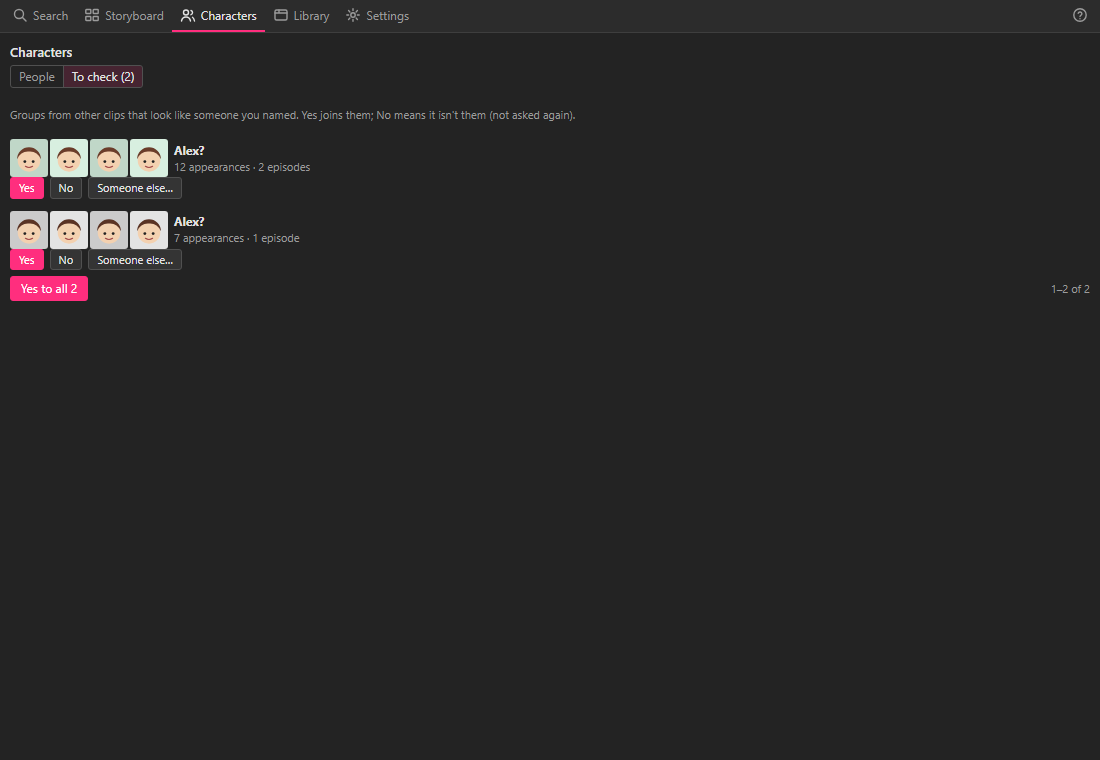
Each row shows a group's faces and who Potheon thinks it is ("Alex?"). The most alike come first. For each one, click:
- Yes if it's them. The faces join that character.
- No if it isn't. Potheon won't ask about that group again.
- Someone else… if it's a different person. Type who it is and click Save. Start typing and the names you've used appear to choose from.

If they're all right, Yes to all answers the whole page at once. Skip these shows the next page.
Just one character? On their card in the People list, click May also be them to see only the groups that may be them.
Step 4: Search for a character
Go to the Search tab and type @ and the start of their name, then click their name when it appears. Now type what they're doing ("smiling", "running") and press Enter. See Get started with Potheon, Step 15.
You can also click Shots on a character's card to see all their shots.
Other things on a character's card
- The pencil next to a name: rename them.
- Check faces: shows all their faces. If one doesn't belong, select it and move it to the right person, or split it off as someone new.
- Same as…: join this character with another one you choose from the list.
- The crossed-out eye at the right: hide a character you don't care about. It's hidden from the lists and from search. Tick Show hidden at the top to see it again.
Why naming helps
- @name searches find a character's shots across every episode.
- Results show who's in them, under each picture.
- Potheon learns from your names. Once a few characters are named, it learns what tells the faces in your library apart, so finding a character in other episodes gets more accurate. This happens on your computer; nothing is sent anywhere.
- Names you give are kept, even when Potheon is updated.