Use the Potheon panel in After Effects
This guide shows you how to find moments with Potheon inside After Effects and add them to your composition in one click.
How it works: Potheon adds a panel to After Effects. You search in the panel, and the moment you pick is added to your composition as a new layer, starting at the current time. The layer stays linked to the whole episode, so you can make it longer or shorter afterwards.
It works with After Effects 2020 and newer. You need Potheon installed and your footage added first: see Get started with Potheon.
Words used in this guide
- Clip: a short piece of video, cut out of a longer episode or film.
- Composition (or comp): what you build in After Effects, with its own timeline of layers.
- Layer: one item in a composition, such as a video clip.
- Current time indicator: the blue line on the comp's timeline that shows the moment you're at.
- Project panel: the list at the top left of After Effects with everything you've imported.
Step 1: Open your project and a composition
Open After Effects and your project, and open the composition you're working on (double-click it in the Project panel).
Step 2: Open the panel: Window › Extensions › Potheon
At the top of After Effects, click Window, point at Extensions, then click Potheon. In the newest versions this menu may be called Extensions (Legacy).
The panel opens in its own small window. If Potheon wasn't running, the panel starts it and says Starting the Potheon agent… for a few seconds. You can dock the panel by dragging its name tab into a panel area.
Step 3: Search and preview
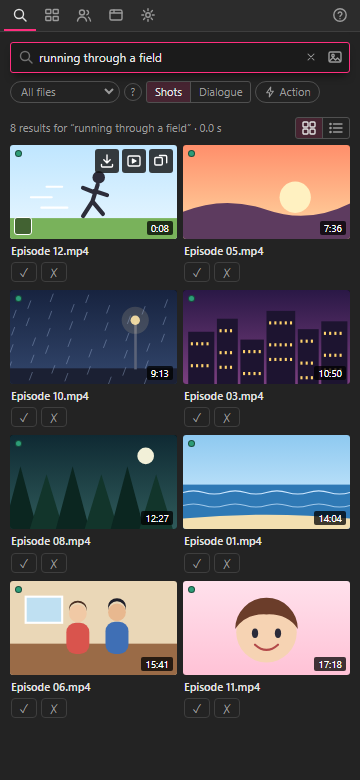
Type what you're looking for and press Enter. Pick Shots for something you can see, or Dialogue for something that's said. Double-click a result to play it; press Esc to stop.
Step 4: Move to where the clip should start
On your composition's timeline, move the current time indicator (the blue line) to the moment where you want the clip to begin.
Step 5: Click "Add to comp"
Point your mouse at the result in the panel. Small buttons appear at its top right. Click the first one, Add to comp (an arrow pointing down into a tray).
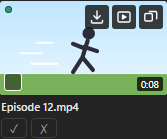
The clip is added to your composition as a new layer, starting at the current time indicator and as long as the moment Potheon found:
- a shot is exactly as long as the shot;
- a line of dialogue has half a second extra at each end, so no word is cut off.
Need more of it? Drag either end of the layer outwards. The whole episode is linked, so it keeps going.
Step 6 (another way): Import the whole episode
The second button (a play sign in a box) imports the whole episode into your Project panel and selects it there, without adding it to a composition. Its label says Open in Source Monitor, a Premiere name: in After Effects it does the import. Then drag the episode into any composition yourself.
The first time you use an episode, Potheon adds it to your project. After that it uses the one already there.
Good to know
- "Open a composition first" means no composition was open when you clicked Add to comp. Open one and click again.
- Export… makes a file for Premiere Pro or DaVinci Resolve, not After Effects. In After Effects, use Add to comp.
- MKV files: After Effects can't open MKV (and a few other kinds of video). The first time you add a result from one, Potheon makes an MP4 copy, which can take a little while. The copies go in a folder next to your footage folder, named after it with "(MP4)" at the end.
- The panel and the desktop app share everything: the same footage, characters and scans.
- Help: the ? at the top right of the panel opens this guide.